Trying to log in to Prime Video on your TV but not sure where to start? Whether you’re using a Smart TV, Fire TV, Roku, or streaming device, the sign-in process is simple. Follow the exact steps below to activate Prime Video using primevideo.com/mytv in just a few minutes.
To log in to Prime Video on your TV, open the Prime Video app, select Sign In, and generate the activation code shown on your screen. Then visit primevideo.com/mytv or amazon.com/mytv on your phone or computer, sign in to your Amazon account, and enter the code to complete activation.
Turn on your Smart TV or streaming device
Go to your Apps section
Open the Prime Video app
If you don’t see it, install it from your TV’s app store.
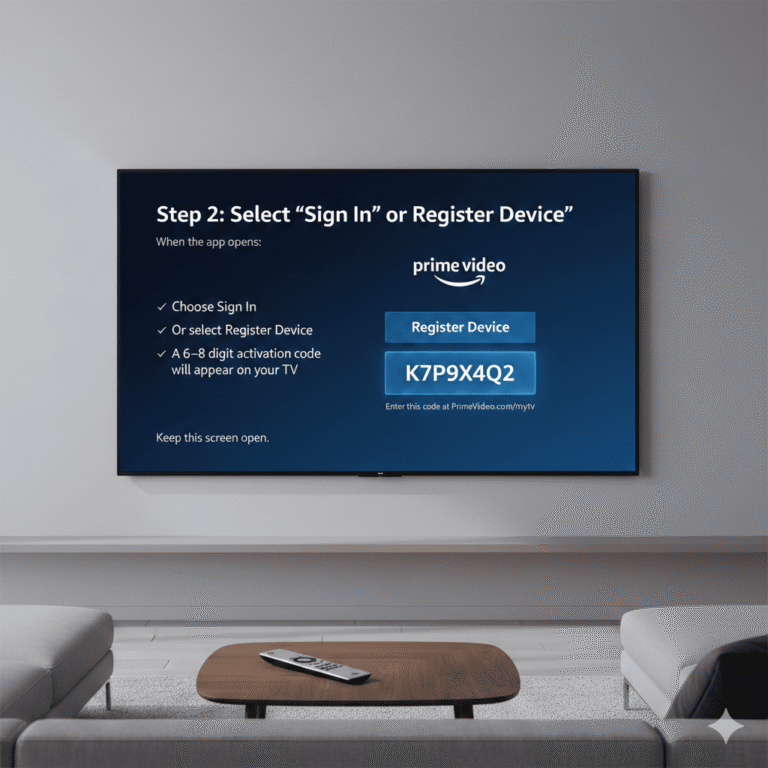
When the app opens:
Choose Sign In
Or select Register Device
A 6–8 digit activation code will appear on your TV screen
Keep this screen open.
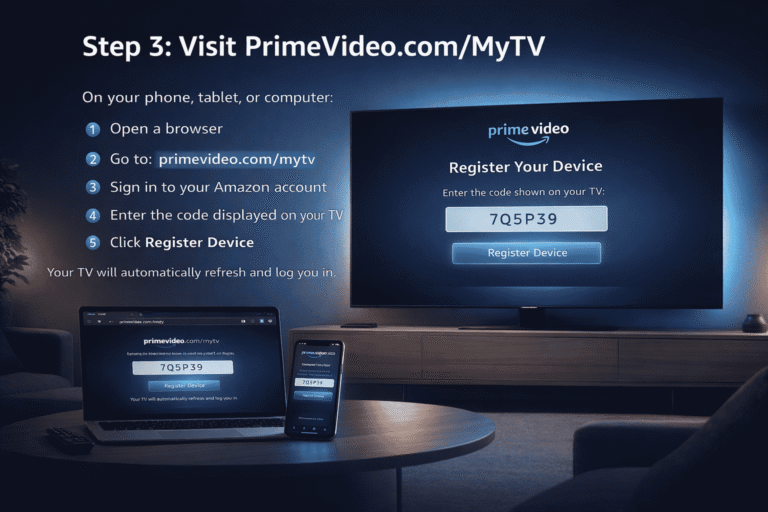
On your phone, tablet, or computer:
Open a browser
Go to: primevideo.com/mytv
Sign in to your Amazon account
Enter the code displayed on your TV
Click Register Device
Your TV will automatically refresh and log you in.
If the code doesn’t work:
Generate a new code from your TV
Enter it within a few minutes (codes expire quickly)
Make sure you are signed into the correct Amazon account
Restart your TV and internet connection if needed
For detailed troubleshooting, read: Amazon MyTV Invalid Code Fix Guide
Here are the most common reasons login may fail:
Code expired before submission
Internet connection is unstable
Using different Amazon accounts
VPN enabled
Prime Video app not updated
Fixing these usually resolves login issues instantly.
Prime Video login on TV is simple:
Open the app
Select Sign In
Generate code
Visit primevideo.com/mytv
Enter the code
If issues occur, restart your device, refresh the code, and confirm your account details.

EnterTVCode.com is an independent help and guide website. We are not affiliated with YouTube, Amazon, Hulu, Netflix, FuboTV, or any other streaming or device brand.