Signing in to YouTube on your Smart TV lets you access your subscriptions, playlists, watch history, and personalized recommendations. Without signing in, you’re only browsing as a guest.Most users don’t struggle with opening the YouTube app — they get confused during the sign-in process. Whether you’re using a Samsung TV, LG TV, Roku, Fire Stick, or Android TV, the sign-in method is almost the same.Below is the simplest way to sign in properly without errors.
Quick Summary
To sign in to YouTube on your Smart TV, open the YouTube app and select Sign In. Choose the option to sign in with a web browser, and a code will appear on your TV screen. On your phone or computer, visit youtube.com/activate, log in to your Google account, enter the code shown on your TV, and confirm. Your TV will refresh automatically and complete the sign-in process within seconds.
How to Sign In to YouTube on Smart TV (Step-by-Step)
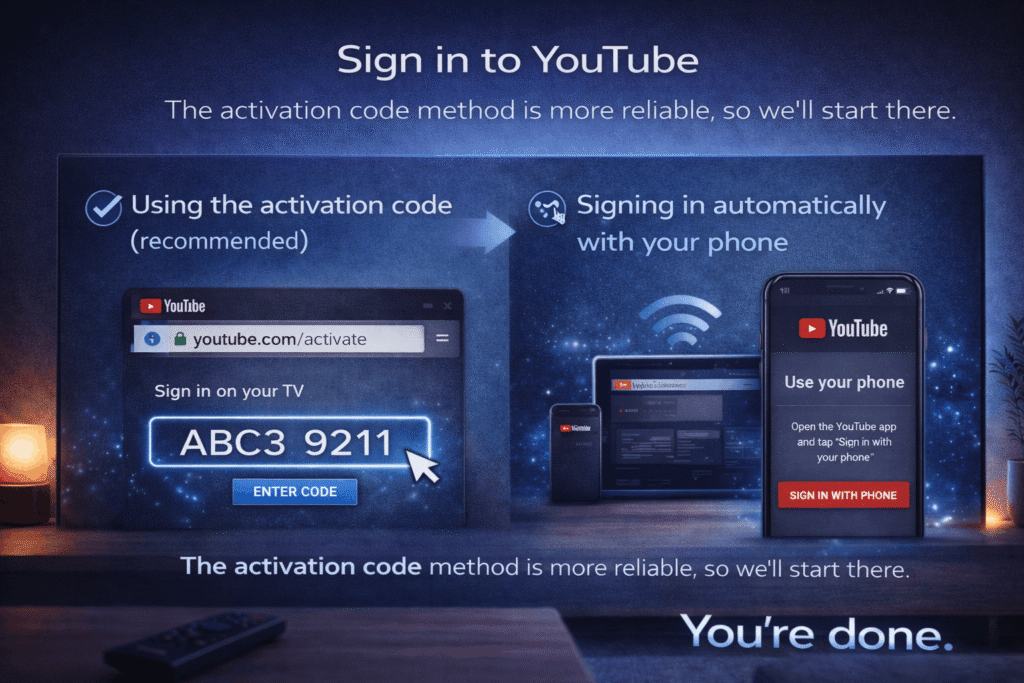
There are two ways to sign in:
Using the activation code (recommended)
Signing in automatically with your phone
The activation code method is more reliable, so we’ll start there.
Method 1: Sign In Using Activation Code
Step 1: Open the YouTube App
• Turn on your Smart TV • Launch the YouTube app • Select Sign In from the left menu
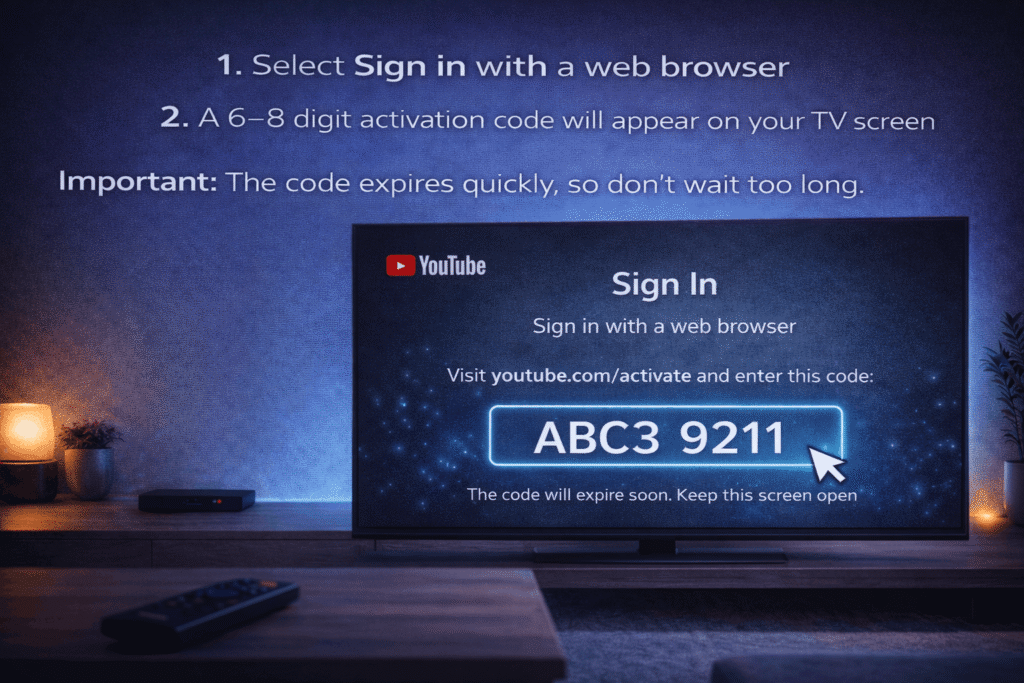
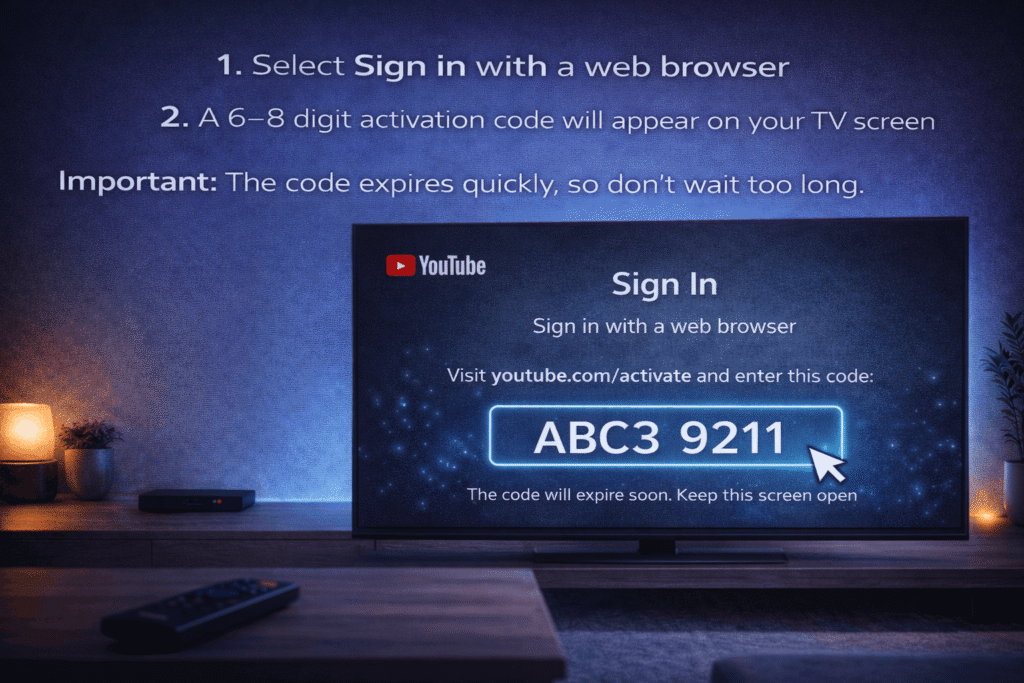
Step 2: Choose “Sign in with a Web Browser”
• Select Sign in with a web browser • A 6–8 digit activation code will appear on your TV screen • Keep this screen open
Important: The code expires quickly, so don’t wait too long.
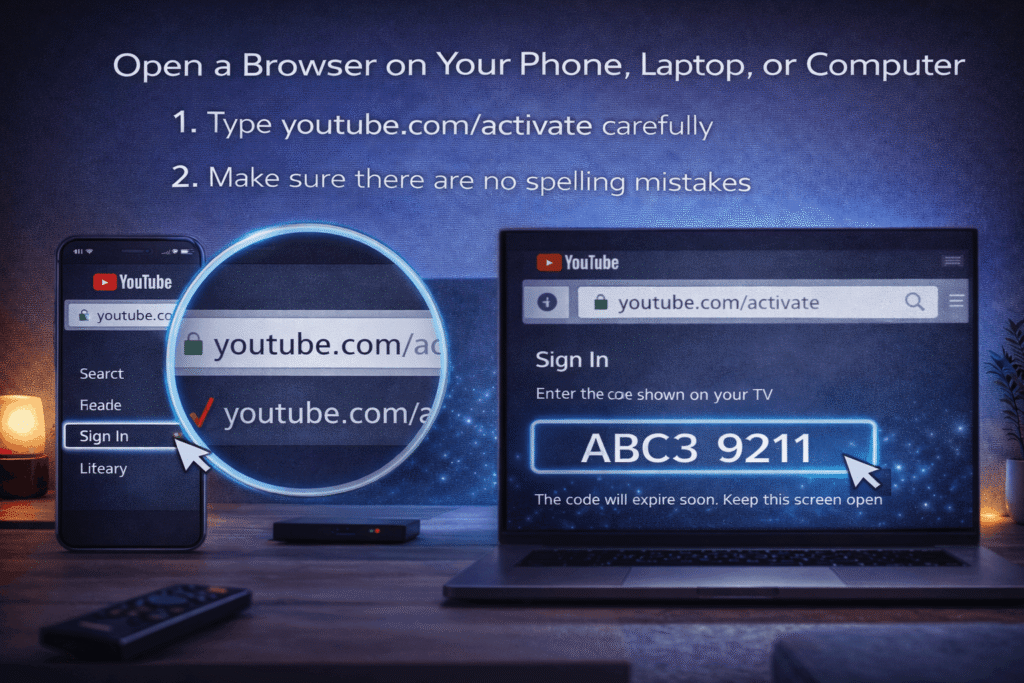
Step 3: Go to youtube.com/activate
• Open a browser on your phone, laptop, or computer • Type youtube.com/activate carefully • Make sure there are no spelling mistakes
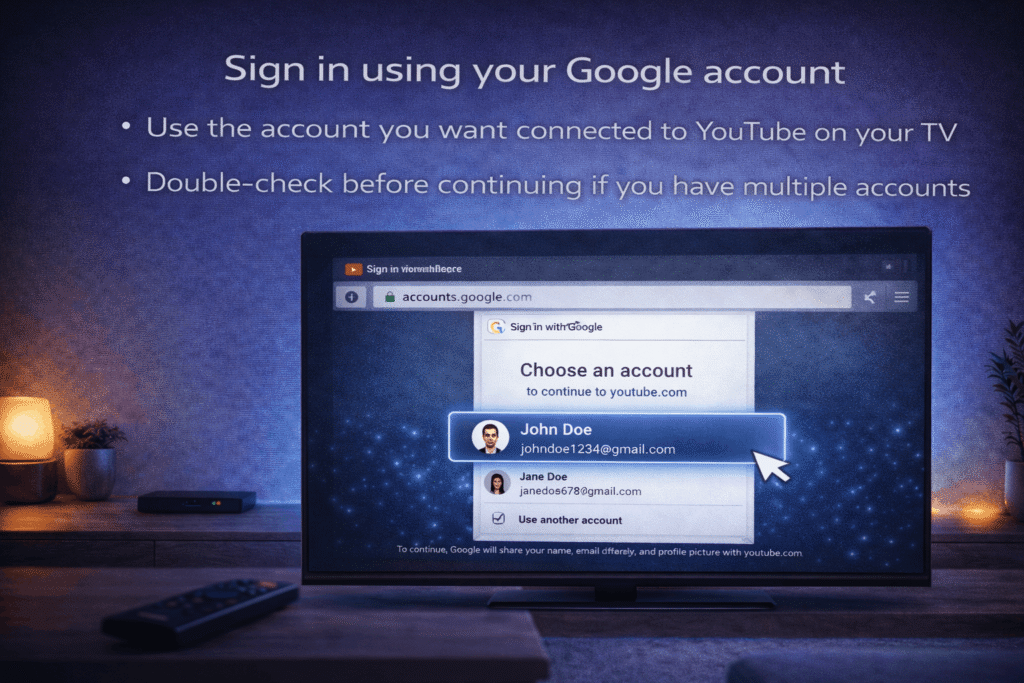
Step 4: Log In to Your Google Account
• Sign in using your Google account • Use the account you want connected to YouTube on your TV • Double-check before continuing if you have multiple accounts
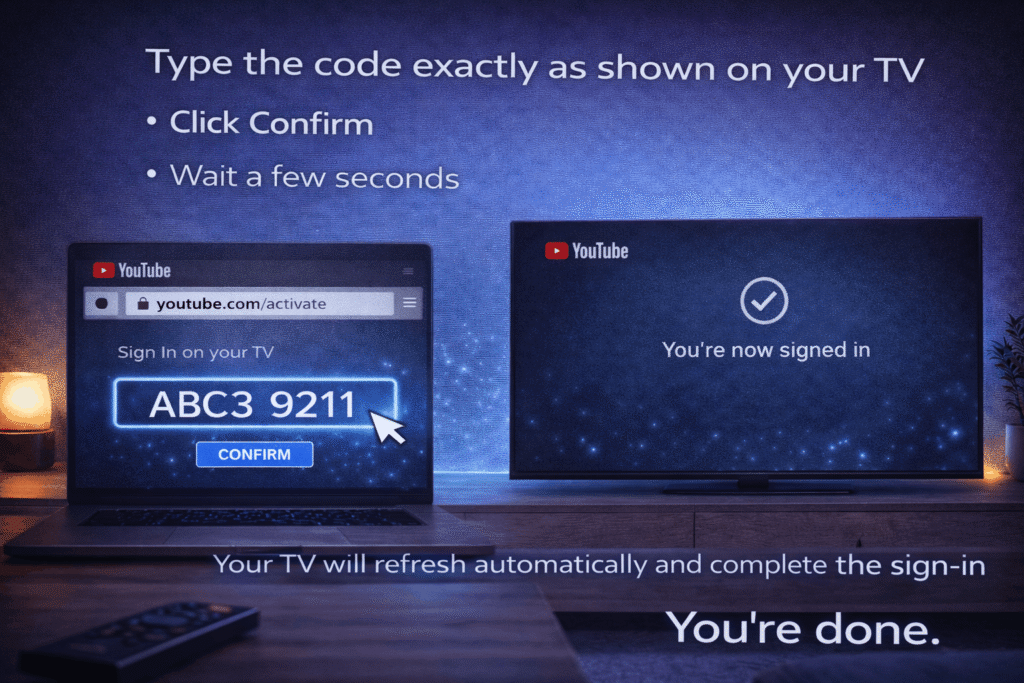
Step 5: Enter the Activation Code
• Type the code exactly as shown on your TV • Click Confirm • Wait a few seconds
Your TV will refresh automatically and complete the sign-in process.
You’re done.
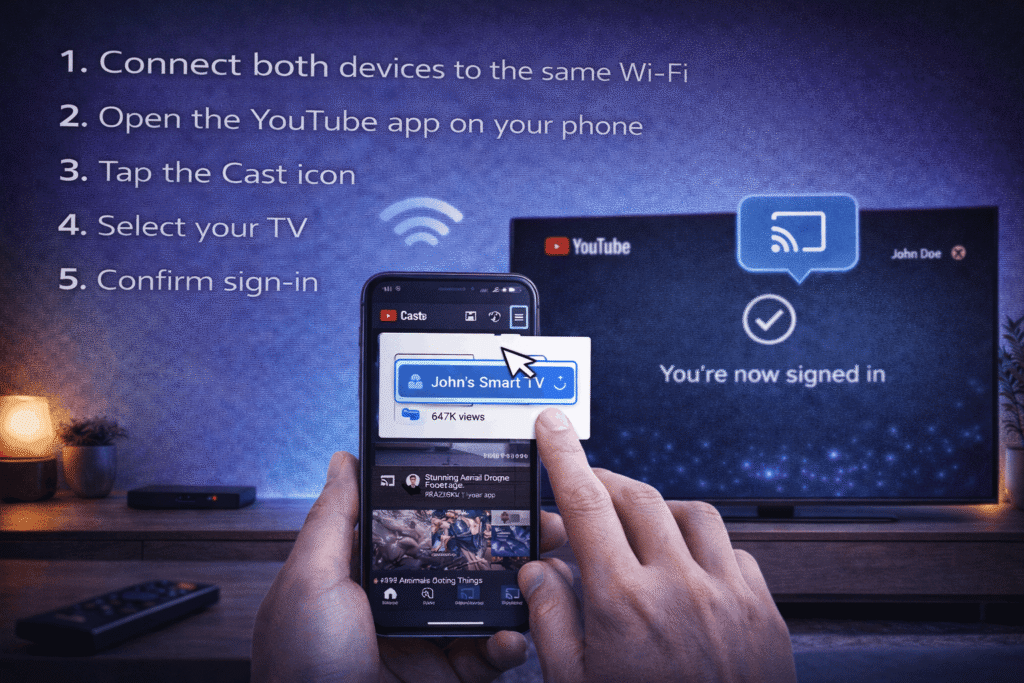
Method 2: Sign In Using Your Phone (Automatic Method)
This method works only if your phone and TV are connected to the same Wi-Fi network.
Steps:
Connect both devices to the same Wi-Fi
Open the YouTube app on your phone
Tap the Cast icon
Select your TV
Confirm sign-in
This method skips the manual code entry.
If your TV doesn’t appear, check your Wi-Fi connection.
Why YouTube Sign In Sometimes Fails
Even when you follow the steps correctly, small issues can interrupt the process.
Here are the most common reasons:
The activation code expired
The wrong Google account was used
Internet connection is unstable
VPN is enabled
Multiple activation pages are open
If sign-in fails, simply restart the YouTube app, generate a new code, and try again immediately.
Common Mistakes to Avoid
Many activation problems are caused by simple mistakes:
Waiting too long before entering the code
Typing the wrong activation website
Switching accounts during activation
Using public Wi-Fi
Keeping multiple youtube.com/activate tabs open
Follow the process once carefully, and it usually works the first time.
What to Do If You Still Can’t Sign In
If YouTube still won’t sign in:
Restart your TV
Restart your Wi-Fi router
Clear browser cache
Generate a fresh activation code
Enter the code immediately
In most cases, this resolves the issue quickly.
Final Recap
Signing in to YouTube on Smart TV is simple:
Open the app → Select Sign In → Get the activation code → Visit youtube.com/activate → Enter code → Confirm.
When done correctly, the process takes less than a minute.
Having Trouble Signing in to YouTube on Your Smart TV?
Signing into YouTube on a Smart TV or streaming device doesn’t always go perfectly — and that’s completely normal.
If your YouTube sign-in code is not showing, has expired, or youtube.com/activate is not working, don’t panic. These are common issues, and most of them are easy to fix in just a few minutes.
Instead of guessing or retrying randomly, follow the right solution based on your problem.
To sign in, open the YouTube app on your TV and select Sign In. Choose the web browser option to generate a code. Then visit youtube.com/activate on your phone or computer, log in to your Google account, enter the code shown on your TV, and confirm. Your TV will refresh automatically.
You must enter the code at youtube.com/activate in a web browser. After signing in to your Google account, type the code displayed on your TV screen and click confirm.
YouTube activation codes are temporary for security reasons. If you wait too long before entering the code, it will expire. Simply reopen the YouTube app on your TV to generate a new code.
Yes. If your phone and Smart TV are connected to the same Wi-Fi network, you can sign in using the YouTube mobile app. Select the Cast option and confirm sign-in. This skips the manual code entry.
No. You do not need YouTube Premium to sign in. A regular Google account is enough to log in and access your subscriptions and history.
Written by Alex Carter
Tech Specialist at EnterTVCode
Alex has 6+ years of experience helping users fix streaming device activation and TV connectivity issues. He writes simple step-by-step guides so anyone can set up their devices without frustration.